Unlocking Audiophile-Grade Sound: How to Maximize Audio Quality on Your Android Phone
Article Editorial Team
There are multiple ways to adjust the audio output on your Android phone, but getting the best possible sound from your device requires looking beyond simply plugging in a great pair of headphones or in-ear monitors. Digital audio is deceptively complex, involving the transformation of physical sound waves into digital code and back into sound waves before it ever reaches your ears. Once you understand the fundamental mechanics of how Android handles sound, however, you can extract significantly better performance from your hardware.
Achieving superior audio requires examining how Android directs sound to your ears, identifying which processing layers alter the signal along the way, choosing an application that supports lossless formats, and effectively equalizing your headphones for either a neutral sonic profile or custom tuning. Ultimately, listeners can decide whether they want to pursue the absolute fidelity of audiophile-grade sound or simply optimize their favorite music streaming applications for the best possible everyday performance.
How Android Handles Audio and Why It Matters
Understanding the audio path on Android reveals why simply plugging in headphones does not automatically guarantee the highest possible fidelity. The system’s signal chain traces a specific route from the audio source application to the operating system, where a core service called AudioFlinger handles distribution. AudioFlinger passes the stream through the system mixer, where audio effects may be applied or tracks can duck in volume to accommodate incoming notification sounds. For audio enthusiasts seeking an unaltered, pure signal, this mixing stage introduces unwanted variables.
After passing through the mixer, the audio data moves to the hardware abstraction layer (HAL), which transmits the signal to physical playback hardware like wired connections, Bluetooth devices, or internal speakers. During this journey, AudioFlinger continually samples and downmixes the audio stream. By default, Android processes everything using a 32-bit floating point, exceeding the requirements of even true lossless audio files, and outputs the signal at a 48kHz sample rate with either 16 or 24 bits of depth. Because standard consumer lossless tracks top out at 24-bit and human hearing limitations sit below a 48kHz threshold, most listeners remain fully satisfied. However, this background processing means Android is almost constantly altering the audio signal.
For those pursuing mathematical precision—known as bit-perfection—this system behavior presents a hurdle. Bit-perfect audio means the signal remains untouched by mixing, resampling, or other alterations along the audio chain, ensuring the file you hear is mathematically identical to the source. While bit-perfect playback of a lossless file represents the gold standard for purists, it directly conflicts with another essential element of sound optimization: equalization, which inherently alters the audio signal before it reaches the ears. To apply custom tuning, users must first eliminate any pre-existing system-level processing.
Android 14 introduced lossless USB audio support, allowing compatible applications to address the mixer directly. This feature enables apps to bypass the mixer entirely and pass audio straight through the framework to the hardware abstraction layer. For this to work seamlessly, every layer of the audio stack must align: the device manufacturer must implement lossless USB audio, the player application must support it, and the connected digital-to-analog converter must natively handle the file’s sample rate.
While the underlying mechanics are complex, the practical steps remain straightforward. Users can begin by disabling any extra audio processing implemented by their phone, including device settings equalizers, spatial audio enhancements like Dolby processing, and other features that actively modify the audio signal before transmission.
Wired Audio Is the Simplest Path to Perfection
Wired headphones bypass the complications of wireless codecs entirely, making wired configurations the most direct route to achieving the highest possible audio quality on an Android device. While using wired headphones does not guarantee superior sound on its own, it ensures that even basic hardware receives the complete audio signal without data loss caused by wireless compression. Whether those headphones can physically reproduce that fine level of detail is a separate consideration.
Because most modern smartphones lack a traditional 3.5mm headphone jack, users typically require a digital-to-analog converter, commonly known as a DAC. A DAC takes the digital data stream transmitted through a phone’s USB-C port and converts it into an analog signal that a standard headphone cable can interpret. Traditional devices with built-in headphone jacks house their DAC internally, whereas external standalone DACs allow users to select their preferred hardware.
DACs do not require bulky desktop enclosures; portable options and compact USB-C-to-headphone jack adapters function as fully capable DAC chips. The critical factor is the capability of the specific chip performing the audio conversion, with high-resolution decoding up to 32-bit and 96kHz serving as an ideal benchmark. Certain USB-C adapters are active components that perform the conversion independently, while others are passive designs that rely on an internal DAC hidden within the phone itself.
While high-end DACs can command substantial prices, budget-friendly options deliver exceptional performance. Many audio enthusiasts recommend the Apple USB-C-to-3.5mm headphone jack adapter as a reliable, no-frills external DAC, though specialized manufacturers also offer dedicated high-resolution units for enthusiasts willing to invest further.
Bluetooth Is Lossy but Can Still Deliver Great Audio Quality
Bluetooth has historically faced criticism from audiophiles because it trades audio fidelity for wireless convenience. Traditional Bluetooth protocols lack the bandwidth required to transmit true lossless audio, with only rare exceptions. Nevertheless, modern Bluetooth implementations can deliver audio quality so refined that the human ear cannot detect signal loss under normal listening conditions.
The standard Bluetooth codec—the algorithm responsible for compressing and decompressing wireless data between a phone and headphones—is the Sub-band Codec. SBC is heavily lossy, topping out at 320 kilobits per second, roughly comparable to a standard MP3 file, though stability often requires dropping to an even more compressed 192 kbps. The Advanced Audio Coding format is widely utilized across iPhones and various Android devices, peaking around 250 kbps. While adequate for everyday listening, these standard codecs fall short of high-fidelity standards.
High-resolution Bluetooth codecs, notably Qualcomm’s aptX variants and Sony’s LDAC, push wireless fidelity significantly higher. Because these formats are proprietary, compatibility depends entirely on whether both the Android smartphone and the connected headphones support them. Qualcomm’s aptX Adaptive includes an aptX Lossless mode capable of delivering high audio quality at 16-bit depth and 44.1kHz. However, aptX Lossless requires specific hardware support found on a limited number of devices, and it automatically reverts to lossy transmission if environmental wireless interference increases.
Sony contributed its LDAC codec to the Android Open Source Project, ensuring widespread software compatibility across the platform. LDAC accommodates internal 32-bit processing to match Android’s mixer architecture, while its ultimate output reaches up to 24-bit and 96kHz. Given Samsung’s dominant market share, Galaxy device compatibility is also notable; while select Samsung models support aptX, the brand more broadly implements LDAC alongside its proprietary Samsung Seamless Codec to facilitate high-resolution streaming on flagship earbuds and headphones.
Unlocking high-resolution Bluetooth requires compatible headphones. Users must also verify that Android is not restricting the codec. Companion apps for specific headphones often house codec toggles within their own menus, while secondary controls reside in Android’s Bluetooth settings next to individual device listings. If high-resolution streaming fails to activate despite hardware support, enabling developer settings on the phone allows manual selection of preferred codecs, sample rates, bits per sample, and streaming quality priorities.
Player Apps Are the Heart of an Android Audio Setup
Selecting a playback application represents one of the most consequential decisions for Android users seeking optimal audio performance. For listeners who are not pursuing bit-perfect playback—a standard that is unattainable over standard Bluetooth connections—most mainstream music streaming platforms provide robust capabilities.
Services such as Spotify, Apple Music, Tidal, and Qobuz all support lossless streaming. Spotify caps its high-resolution tier at 24-bit and 44.1kHz, whereas platforms like Tidal and Qobuz host material reaching up to 24-bit and 192kHz. Combined with quality wired headphones or high-res wireless cans, these platforms deliver deeply engaging playback.
For audiophiles dedicated strictly to bit-perfect reproduction, Tidal and Qobuz stand out by integrating with specialized third-party players capable of bypassing the Android system mixer. Qobuz also operates an a la carte high-resolution music store, allowing users to purchase and download local master-quality files directly.
When playing locally stored music files at maximum quality, dedicated local player applications become essential. Two of the most robust choices for Android enthusiasts are USB Audio Player Pro and Poweramp. Both applications feature dedicated bit-perfect playback modes capable of functioning even on older versions of Android, bypassing the operating system’s native mixer through proprietary routing methods.
Poweramp provides extensive digital signal processing tools, allowing users to visualize their active audio chain and make precise adjustments, with a trial version upgradable via an in-app purchase. USB Audio Player Pro offers direct streaming integration with services like Tidal and Qobuz, alongside support for cloud storage providers, UPnP and DLNA servers, and network-attached storage. This connectivity eliminates the need to manually transfer large local audio files onto internal device storage.
EQing Your Headphones Trades Bit-Perfect Audio for Personalized Sound
The final phase of optimizing an Android audio setup involves equalization. While the pursuit of bit-perfect audio seeks to preserve the source file without interference, digital signal processing encompasses any deliberate modification made to an audio signal, ranging from equalization adjustments to multi-speaker time alignments. Purists aiming for a completely unaltered signal will naturally bypass equalization entirely.
However, equalization remains crucial for consumer audio because factory headphone tunings rarely align with individual listening preferences and hearing profiles. Achieving the ideal listening experience often involves applying targeted digital signal processing to an otherwise clean audio stream, blending structural fidelity with personalized sound shaping.
Equalization goals typically fall into two categories: pursuing a flat, neutral sound profile that respects the original recording, or tailoring frequencies to personal taste, such as boosting bass response. Establishing a bit-perfect foundation via Android settings ensures that subsequent equalization adjustments are applied to a clean, unaltered signal.
Users running USB Audio Player Pro in bit-perfect mode with wired headphones can utilize the application’s built-in parametric tools or external hardware to equalize their sound. Listeners relying on standard streaming applications routed through the system mixer can similarly build custom equalization profiles.
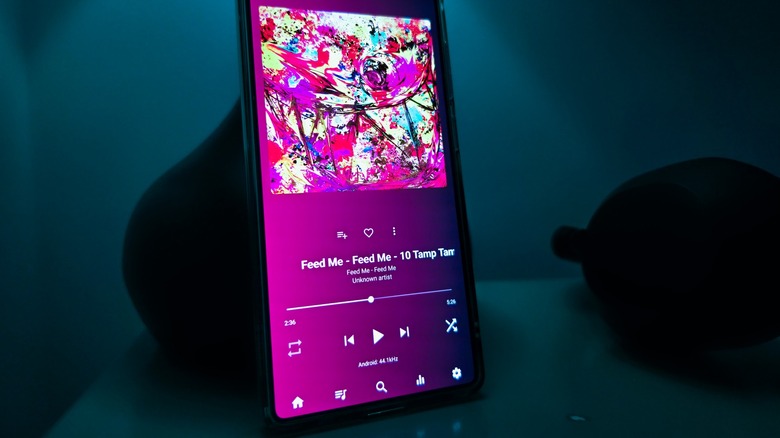
Rather than tuning manually by ear, many modern enthusiasts rely on automated calibration tools like AutoEQ, which provides frequency response adjustments mapped to specific headphone models. Users can generate correction files and import them directly into application equalizers or system-wide utilities like Wavelet, a popular background application that applies consistent equalization across all system audio output when headphones are connected. Maintaining separate presets for distinct listening devices ensures optimal results across diverse hardware before users sit back and enjoy their optimized mobile listening environment.
Related News