Your Phone’s Apps Could Have More Permissions Than They Need—Here’s How to Check
Article Editorial Team
Staying on top of what information your smartphone applications can access has quietly become one of the most vital aspects of personal digital hygiene. While modern operating systems offer increasingly robust defenses against malicious software, the sheer volume of apps installed on an average device means that over-permissioning remains a pervasive issue. Users often grant broad approvals during initial setup without considering the long-term implications for their personal data, leaving sensitive device features open to inspection long after the initial download.
It is a wonderful convenience that modern smartphone users have access to hundreds of thousands of applications spanning every conceivable utility, entertainment genre, and productivity need. However, this vast digital ecosystem makes mindful installation more important than ever. Both Android and iOS feature surprisingly effective built-in security measures designed to detect and block explicitly malicious applications before they can cause harm. Even so, legitimate apps may still pose privacy risks if they retain sweeping, unnecessary access to sensitive information or core device features.
When an application requests permission to view your camera, track your location, read your text messages, or browse your files, it does not automatically mean the software is unsafe or malicious. Nevertheless, it is always worth pausing to question why the software requires those specific capabilities in the first place, particularly if the requested privileges bear little connection to the core functionality of the app. A flashcard application requesting continuous background location tracking, or a simple calculator demanding access to your contact list, represents the kind of digital disconnect that warrants a closer look.
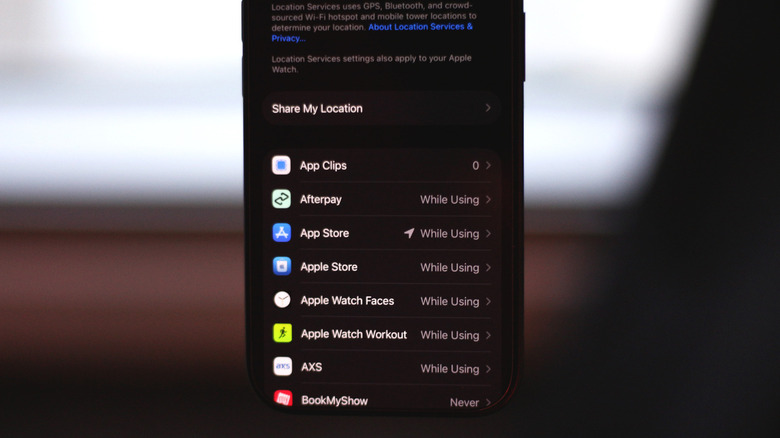
Reviewing app permissions on your phone periodically serves as a highly effective safeguard to keep your personal data secure from overreach. Fortunately, both major mobile operating systems allow users to inspect and adjust these permissions fairly easily through their native settings menus. If you discover an application that has been granted continuous background location access, for instance, you can easily revoke that privilege entirely or modify it so the application can only pinpoint your whereabouts when you are actively interacting with the software.
Device cameras and real-time location details represent two of the most sensitive categories of personal information stored and generated by modern smartphones. Recognizing the inherent privacy risks associated with these sensors, both Android and iOS incorporate prominent on-screen indicators that activate whenever an app is actively utilizing your camera, recording through your microphone, or querying your geographic location. On Apple devices, a subtle green dot illuminates in the status bar when the camera is in use, an orange dot appears when an application is listening via the microphone, and a blue location icon signifies that an app is actively pinging your whereabouts. Android devices employ similar status bar indicators, allowing users to swipe down to access the quick settings panel or notification shade to immediately identify which specific application is accessing those sensitive hardware features.
Manage App Permissions on iOS
Apple has built a significant portion of its brand identity around privacy-oriented hardware and software design, making it unsurprising that its mobile operating systems feature sophisticated security frameworks. Recent iterations of iOS and iPadOS handle application permissions with a high degree of granular control. Whenever a user installs a third-party application and launches it for the first time, the operating system requires the software to formally request permission before it can access sensitive data categories such as personal contacts, photo libraries, geographic locations, or the microphone. When a newly launched app requests location access, users are presented with flexible options, allowing them to tap temporary allowances or select persistent options only if they fully trust the underlying service.
Beyond these initial prompts, users can view and comprehensively manage app permissions at any time by navigating directly through the device settings menus into the dedicated privacy and security section. This centralized hub lists each distinct permission type alongside a convenient tally of the exact number of apps currently granted access to that resource. Tapping on a specific category, such as the microphone, reveals a comprehensive roster of every application on the device that possesses authorization to use it. Revoking access for any individual app is as simple as toggling off the switch situated next to its name.
Certain complex utility applications, such as mapping services or ride-hailing platforms, may function at their highest level of optimization only when granted precise geographic coordinates and continuous location access. However, iOS allows users to dial these permissions back on a strictly per-app basis to match their personal comfort levels. Similarly, when an application requests access to a user’s photo library, the system provides an option for limited access, permitting the user to select and expose only the specific photos and videos they explicitly wish to share, rather than granting unfettered entry to their entire camera roll.
For users seeking deeper insight into their device’s ongoing data flows, enabling the system’s app privacy report feature unlocks a chronological ledger of which applications have accessed phone data and hardware sensors over preceding periods. This reporting section also provides visibility into the network activity generated by individual applications, allowing privacy-conscious users to see precisely which external domains apps are contacting and at what times those network requests occur.
How to View App Permissions on Android
Android’s privacy and security architecture has evolved and improved considerably over the years, moving from an era of all-or-nothing installation prompts to a mature system where users can view and manage permissions on a granular, per-app basis. While exact menu labels and visual presentations may vary slightly depending on the specific hardware manufacturer and customized user interface, locating detailed information regarding which apps have access to cameras, microphones, locations, and contact lists remains remarkably straightforward.
The most direct pathway to revoke a specific application’s permissions is through its dedicated app info screen. Users can reach this page quickly by long-tapping an application’s home screen icon and selecting the shortcut information option. Alternatively, navigating through the main system settings to the comprehensive app management list allows users to select any installed program individually. From there, tapping on the permissions menu breaks down the data types currently accessible, allowing the user to switch between allowance states. Just as with Apple’s ecosystem, location privileges on Android often offer split choices between allowing access only while the application is actively in use or permitting background checks continuously.
Android also features a centralized privacy dashboard designed to aggregate permission types and display which applications have accessed those sensitive resources within a rolling 24-hour window. Because interface layouts differ across various device ecosystems, users can locate this dashboard by searching within the security and privacy submenus of the main settings application or by utilizing the built-in settings search bar.
To reinforce these ongoing management tools, Android applications are strictly mandated to request device permissions dynamically the very first time a user launches the software after installation, giving the user an immediate binary choice to allow or deny the request. Furthermore, both the Google Play Store and Apple’s App Store explicitly display summaries of the data types an application may request access to before the download ever begins, providing yet another vital opportunity for users to review potential privacy footprints before an app is ever introduced to their personal device.
Related News